Look & Sound Great on YouTube and Podcasts
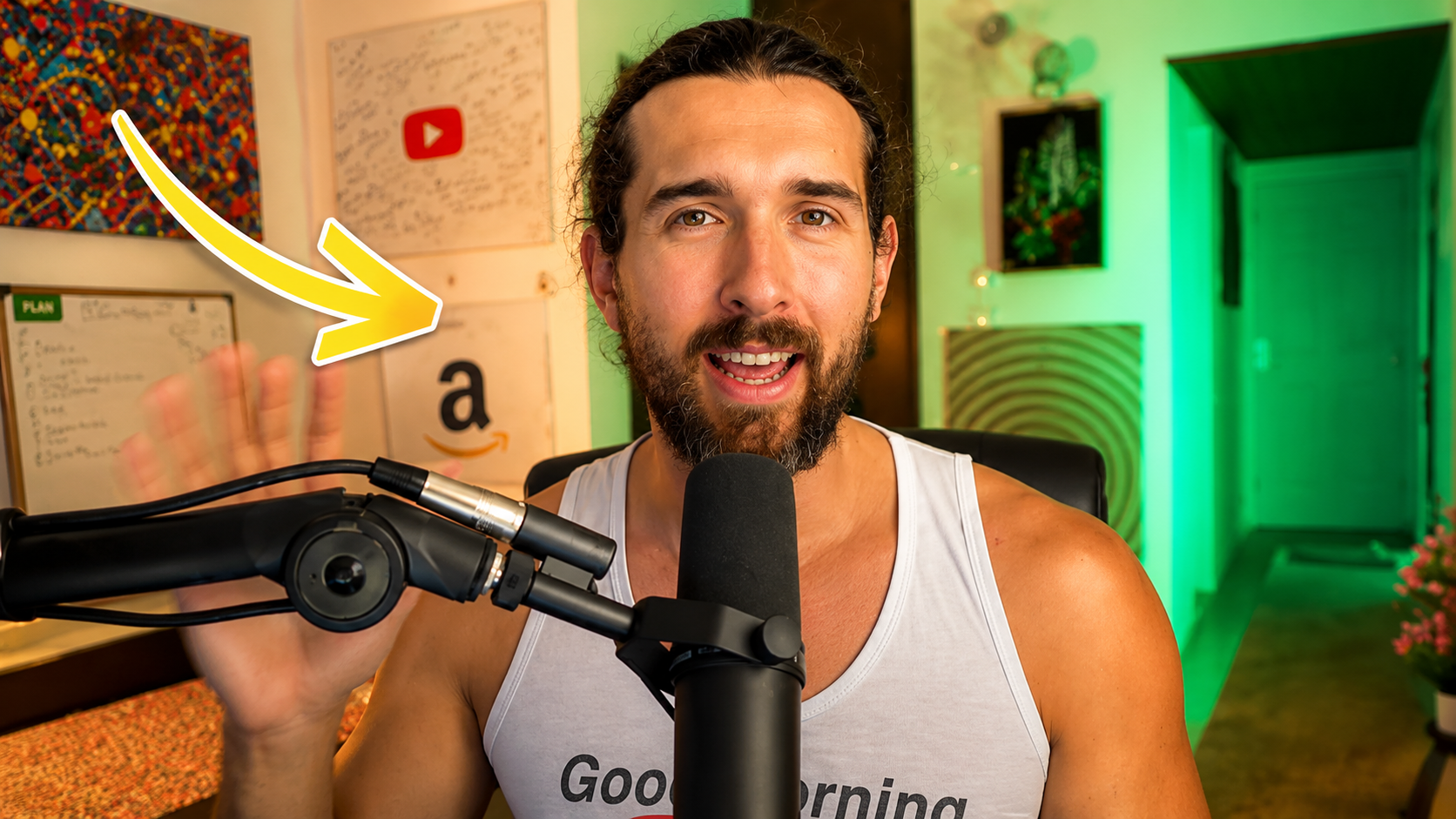
If you want to look and sound better on YouTube Creators videos or podcasts, you do not need a giant studio to start.
You need a clean camera setup, clear audio, steady framing, and lighting that makes your face easy to see.
That is exactly what this tutorial is about.
In the video, I walk through the real equipment I use for YouTube videos, podcast interviews, Zoom calls, and online recordings.
This includes the camera, lens, capture card, tripod, microphone, audio booster, recorder, cables, and lights.
I will also explain what each piece does, why it matters, and what you should upgrade first if you are building your own creator setup step by step.
See All The Equipment I Use
All the equipment from this setup is linked inside the Amazon list below.
Affiliate Equipment List Amazon Gear Kit
Why Video And Audio Quality Matter
Better quality makes your content feel easier to trust.
People may click because of the topic, but they stay longer when they can see you clearly and hear you without effort.
This is especially important for YouTube interviews, podcasts, tutorials, webinars, sales calls, and guest appearances.
Bad lighting makes even a good camera look weak.
Bad audio makes even a smart conversation feel hard to follow.
That is why the best setup is not only about buying expensive equipment.
It is about making the camera, microphone, recorder, and lights work together as one simple system.
Related read: Adzoola Review For Finding Targeted YouTube Videos
The Full Setup At A Glance
Before going into each item, it helps to see the whole setup as a chain.
The camera creates the picture, the lens shapes the look, the tripod keeps the frame steady, the microphone captures the voice, the recorder brings the voice into the computer, and the lights make the whole scene look polished.
| Setup Area
|
Main Equipment
|
Main Job
| | --- | --- | --- | |
Camera
|
Sony A7C with Cam Link
|
Creates a sharper image than a basic webcam.
| |
Lens
|
Sigma 16mm f/1.4
|
Gives a wider, cleaner frame with a softer background.
| |
Tripod
|
JOBY flexible tripod
|
Keeps the camera steady and easy to position.
| |
Microphone
|
Shure SM7B with Cloudlifter
|
Makes the voice sound fuller, cleaner, and more professional.
| |
Recorder
|
Zoom H6
|
Works as a recorder and audio interface for the computer.
| |
Lighting
|
GVM main light and RGB lights
|
Brightens the face and adds depth to the background.
|
Camera, Lens, And Tripod Setup
The camera setup is where the image starts to look more serious.
I use the Sony Alpha 7C mirrorless camera because it gives me a clean full-frame look in a compact body.
To use it as a webcam, I connect it to my computer through the Elgato Cam Link 4K capture device.
The Cam Link takes the HDMI signal from the camera and makes the computer recognize the camera like a webcam.
That means I can use the Sony camera inside Zoom, OBS, podcast recording tools, and other video platforms.
On the camera, I use the Sigma 16mm F1.4 DC DN lens for a wide and bright image.
The wide view helps show my face and some background without making the shot feel cramped.
The bright aperture also helps the image look softer and more polished when the lighting is set well.
For support, I use a JOBY GorillaPod flexible tripod.
It helps me place the camera on the desk, adjust the angle, and keep the shot stable without using a large floor tripod.
-
Mount the camera on the tripod.
-
Attach the lens to the camera.
-
Connect the camera HDMI output to the Cam Link.
-
Plug the Cam Link into the computer.
-
Select the camera as the video input inside your recording or call software.
Related read: Fuel Your Digital Review For YouTube And TikTok Marketing
Microphone And Audio Setup
After the camera looks good, the next thing to fix is the sound.
I use the Shure SM7B dynamic microphone because it gives a rich and focused voice sound.
This kind of microphone is popular with podcasters because it can make speech sound clean and full when used correctly.
The microphone sits on a boom arm so it can stay close to my mouth without taking over the whole desk.
That closeness matters because a microphone usually sounds better when it is placed near the speaker instead of far across the room.
Because the SM7B needs a strong clean signal, I use a Cloudlifter between the microphone and the recorder.
The Cloudlifter gives the microphone extra clean gain before the sound reaches the recording device.
In simple words, it helps the voice sound stronger without forcing the recorder to work too hard.
-
Attach the microphone to the boom arm.
-
Connect the microphone to the Cloudlifter using an XLR cable.
-
Connect the Cloudlifter to the recorder using another XLR cable.
-
Place the microphone close enough so your voice is clear.
-
Check the input level before recording or joining a call.
Recorder And Computer Connection
Once the microphone signal is ready, it needs a way to enter the computer.
I use the Zoom H6 Audio Recorder because it can work as both a recorder and an audio interface.
That gives me flexibility for recorded content, calls, live streams, and podcast conversations.
The basic idea is simple.
The microphone goes into the Cloudlifter, the Cloudlifter goes into the Zoom H6, and the Zoom H6 goes into the computer through USB.
Then I choose the Zoom H6 as the microphone input inside Zoom, OBS, or the recording software I am using.
-
Turn on the Zoom H6.
-
Choose the computer connection mode.
-
Connect the Zoom H6 to the computer with USB.
-
Select the Zoom H6 as the audio input in your software.
-
Speak into the mic and check whether the input levels move.
One small detail matters here.
When using the Cloudlifter, make sure the correct power setting is enabled on the recorder so the Cloudlifter can work properly.
Related read: How To Start A Digital Marketing Agency Business
Lighting Setup
Once the camera and audio are handled, lighting is the part that makes the whole setup feel finished.
Even an expensive camera can look average if the room is too dark, too yellow, or too shadowy.
I use a main GVM light to brighten my face and make the shot more balanced.
GVM video lighting is useful because it gives you control over brightness, color temperature, and the overall look of the frame.
A diffuser helps soften the light so it does not look harsh on the face.
I also use RGB lights in the background to add depth and make the scene feel less flat.
These background lights are not required for every creator, but they help if you want a more polished studio look.
-
Place the main light in front of you and slightly to the side.
-
Use a diffuser so the light looks softer on your face.
-
Adjust brightness until your face is clear but not washed out.
-
Adjust color temperature so the image does not look too blue or too yellow.
-
Add background accent lights only after the main face light looks good.
What To Upgrade First
You do not need to buy every piece of gear on day one.
The best first upgrade depends on what is weakest in your current setup.
If people cannot hear you clearly, fix the microphone first.
If your face looks dark or flat, fix the lighting first.
If your video looks blurry even with good lighting, then the camera and lens become more important.
| Problem
|
Upgrade First
|
Reason
| | --- | --- | --- | |
Voice sounds echoey
or distant
|
Microphone
|
Clear audio makes content easier to watch and understand.
| |
Face looks dark or
shadowy
|
Main light
|
Good lighting can improve even a basic camera.
| |
Video looks soft or
webcam-like
|
Camera and lens
|
A mirrorless camera can create a cleaner and more professional image.
| |
Camera angle looks
unstable
|
Tripod or mount
|
A stable frame makes the whole video feel more intentional.
| |
Background feels flat
|
Accent lights
|
Background depth helps the shot look more polished.
|
Beginner Setup Vs Full Setup
The full setup is helpful, but a beginner can start smaller.
You can begin with your phone, a simple light, and a decent microphone.
Then you can upgrade one part at a time when your content workflow becomes more serious.
| Setup Level
|
What You Can Use
|
Best For
| | --- | --- | --- | |
Starter Setup
|
Phone camera, desk light, simple USB microphone, and basic tripod.
|
New creators testing content without spending too much.
| |
Middle Setup
|
Good webcam or mirrorless camera, proper light, and better microphone.
|
Creators recording weekly videos, podcasts, calls, or interviews.
| |
Full Setup
|
Sony A7C, Sigma lens, Shure SM7B, Cloudlifter, Zoom H6, and GVM lights.
|
Creators who want a polished and more professional studio look.
|
Build Your Creator Setup Step By Step
Use my Amazon equipment list to compare the camera, microphone, recorder, tripod, cables, and lights I use.
Related read: Free Udemy Amazon FBA Courses And YouTube Analytics Training
Common Setup Mistakes To Avoid
Most creator setup problems come from buying gear before fixing the basics.
A better camera will not help much if the light is terrible.
A better microphone will not help much if it is too far away from your mouth.
So before you spend more money, check the simple things first.
-
Do not sit with a bright window directly behind you.
-
Do not place the microphone far from your mouth.
-
Do not use a messy background that pulls attention away from you.
-
Do not record without checking your camera and microphone inputs first.
-
Do not buy advanced gear until you know what problem you are trying to solve.
-
Do not forget to test everything before the real recording starts.
FAQ About Looking And Sounding Great On YouTube Videos And Podcasts
What is the most important equipment for YouTube videos?
The most important equipment depends on your weakest area, but audio and lighting usually create the fastest improvement for beginners.
Do I need a mirrorless camera to look professional?
No, you can start with a phone or webcam, but a mirrorless camera can create a sharper and more polished image when the lighting is also good.
Why use an Elgato Cam Link?
The Elgato Cam Link lets a compatible camera send video into the computer so the camera can be used like a webcam in recording and call software.
Why does the Shure SM7B need extra gear?
The Shure SM7B often needs clean extra gain, so many creators use a Cloudlifter or similar booster before the signal reaches the audio interface or recorder.
Can the Zoom H6 work for podcasts?
Yes, the Zoom H6 can record audio and can also work as an audio interface, which makes it useful for podcasts, interviews, and computer-based recording.
What lighting should I buy first?
Start with a good main light that can brighten your face softly before buying background RGB lights.
Where can I find the full equipment list?
You can open my full YouTube and podcast equipment list on Amazon to see the gear used in this setup.
Related read: Logie AI Review For Amazon Sellers And Creator Content
Final Thoughts
Looking and sounding great on YouTube videos and podcasts comes down to a few connected pieces.
The camera gives you a clean image.
The lens shapes the frame.
The microphone makes your voice clear.
The recorder brings the audio into the computer.
The lights make everything look intentional.
You do not need to build the full setup all at once.
Start with the weakest part of your current recording quality, fix that first, and then keep upgrading as your content grows.
When the setup is done well, your videos and podcasts feel easier to watch, easier to trust, and easier to enjoy.
Get The Equipment From This Setup
Use the Amazon equipment list below to see the camera, audio, lighting, and desk gear used in this tutorial.
Affiliate Equipment List Amazon Gear Kit